
In AlisQI, not every product follows the same control plan. Use field visibility settings in your analysis set forms to define which fields appear for each product.
If your analysis set has an index field, you can define the field visibility per product. This way, you can either render individual fields visible or invisible.
In this article
Required setup
To use field visibility in your analysis set, complete the following steps:
- Add a selection list to your form
- Mark this selection list as a Required field
- Define this selection list as the index field
- Specify the field visibility, per option in your index field selection list.
This is managed from the Results overview under Toolbar » More » Field visibility
You can only define the visibility for non-required fields, as required fields are automatically visible for all options in your selection list.
Tip: To check which fields are marked as required, open the form in the Form Editor and look for the required field indicator on each field.
Define field visibility per product
Check the boxes for the fields you want to make visible for each product.
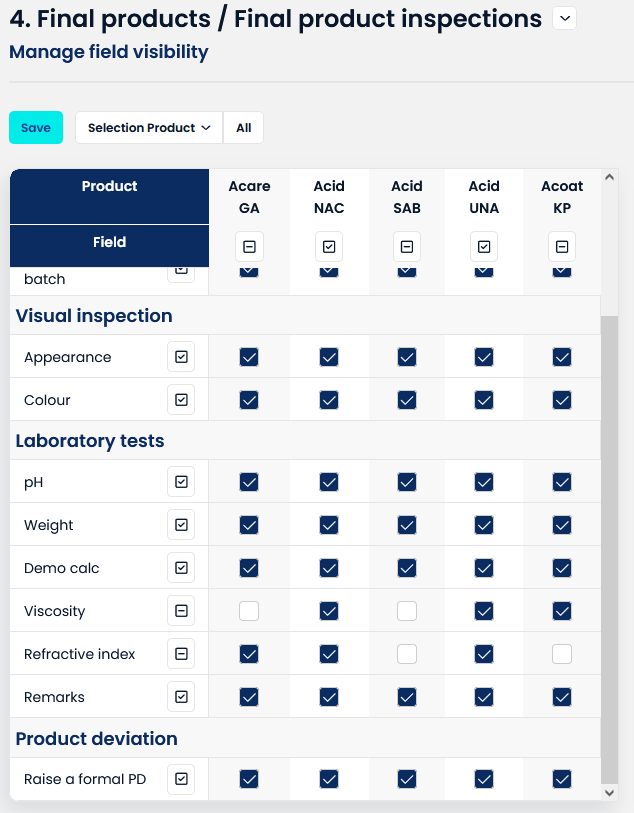
In the data entry form, only the checked (=visible) fields will be available after selecting a particular product.
Note: Calculation fields set to hidden will not run. If a calculation references a field that is hidden for a specific product, that calculation will also be skipped.
Define field visibility for all products
To update field visibility for all products at once:
- Click the All button in the toolbar.
- Select the fields you want to apply a global visibility setting to. Unchecked fields will not be affected.
- Set the desired visibility (visible or hidden) for the selected fields.
The screenshot below shows an example.
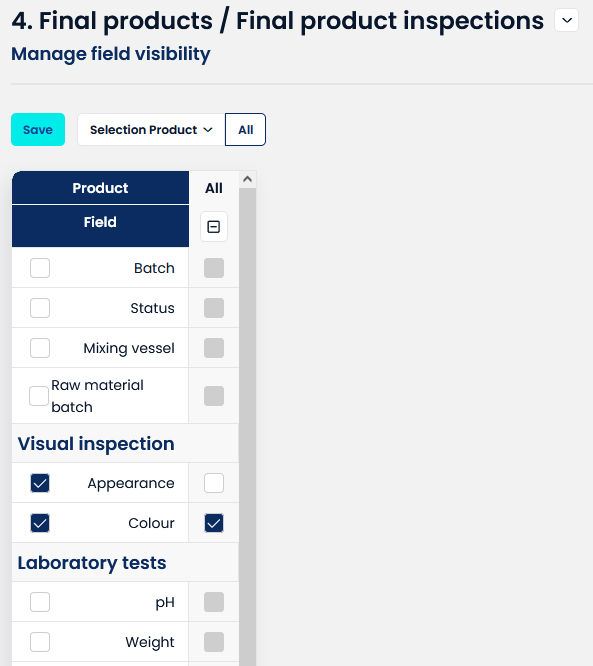
In the example above, Colour is set to visible and Appearance is set to hidden for all products.
Fields that are not selected remain unchanged.